Set up or manage the workspace
The Workspace Setup dialog may look complex at first glance, but don't worry—just work your way through it from top to bottom.
Title, Course or not, subject and description
First name it and decide whether this workspace accompanies a course or it's just a meeting place to organize the next campus party...
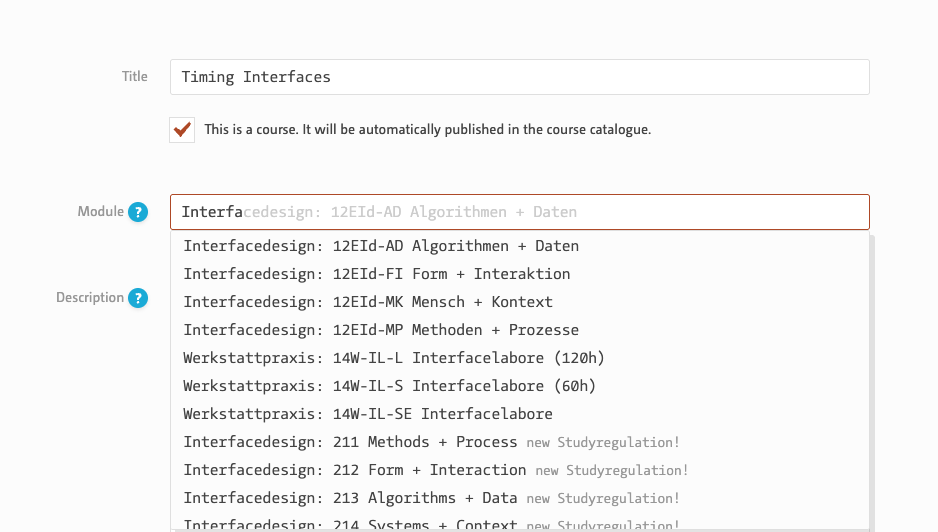
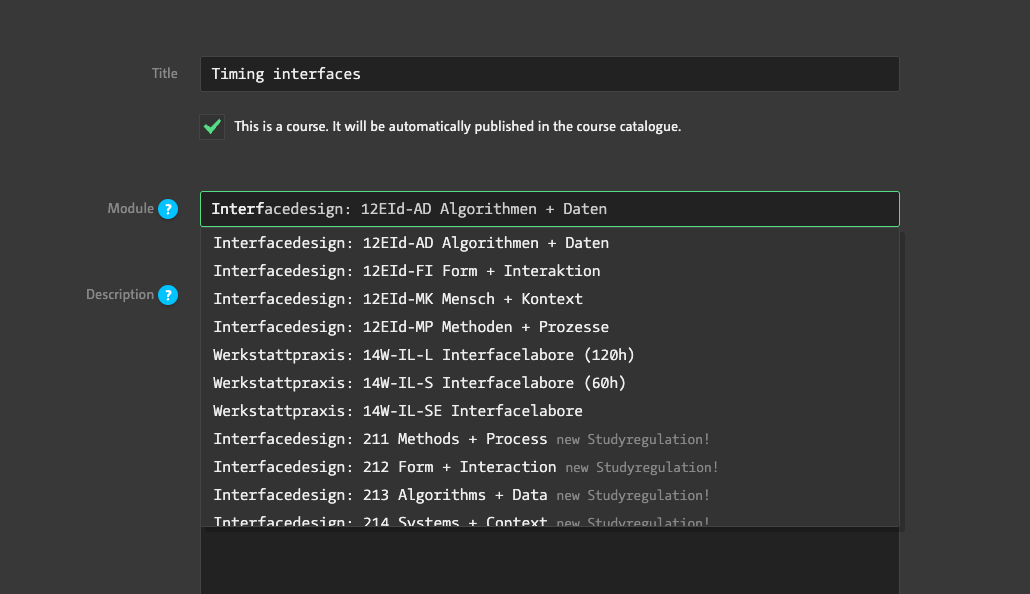
Why isn't the module I've added being accepted?
Modules can only be selected via the autocomplete drop-down menu. The options listed correspond to the curriculum. You cannot enter your own entries.
Time, place and tools
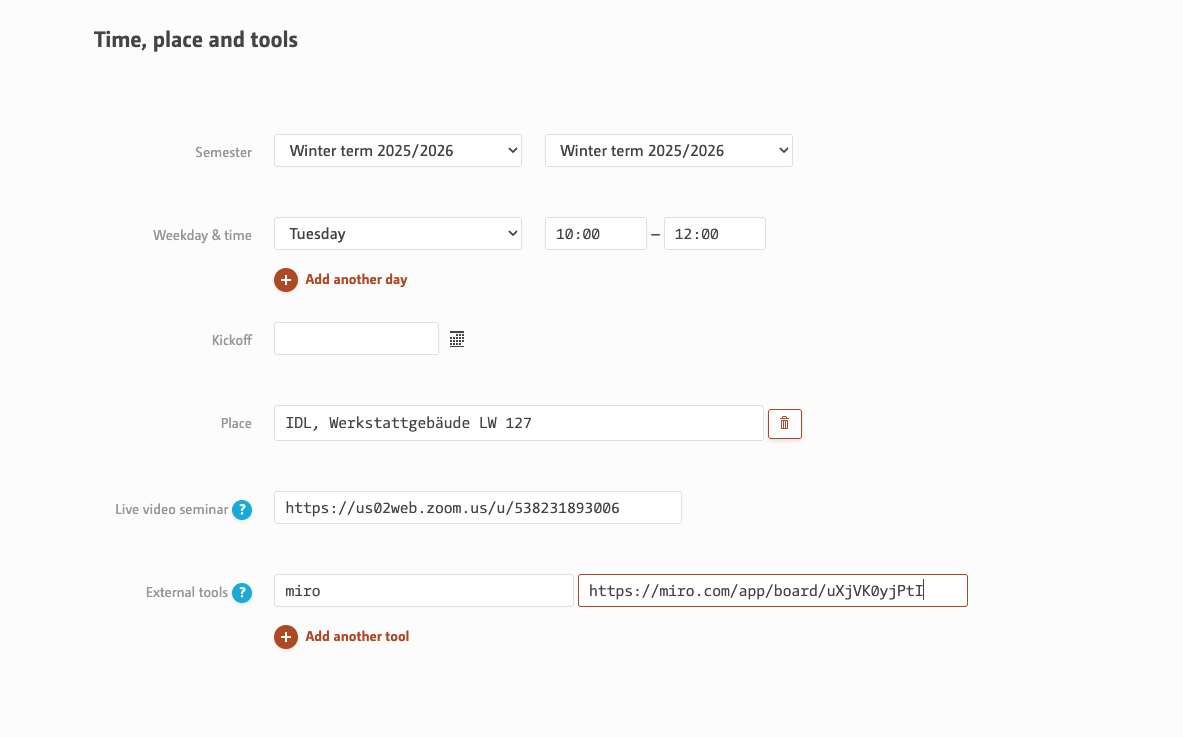
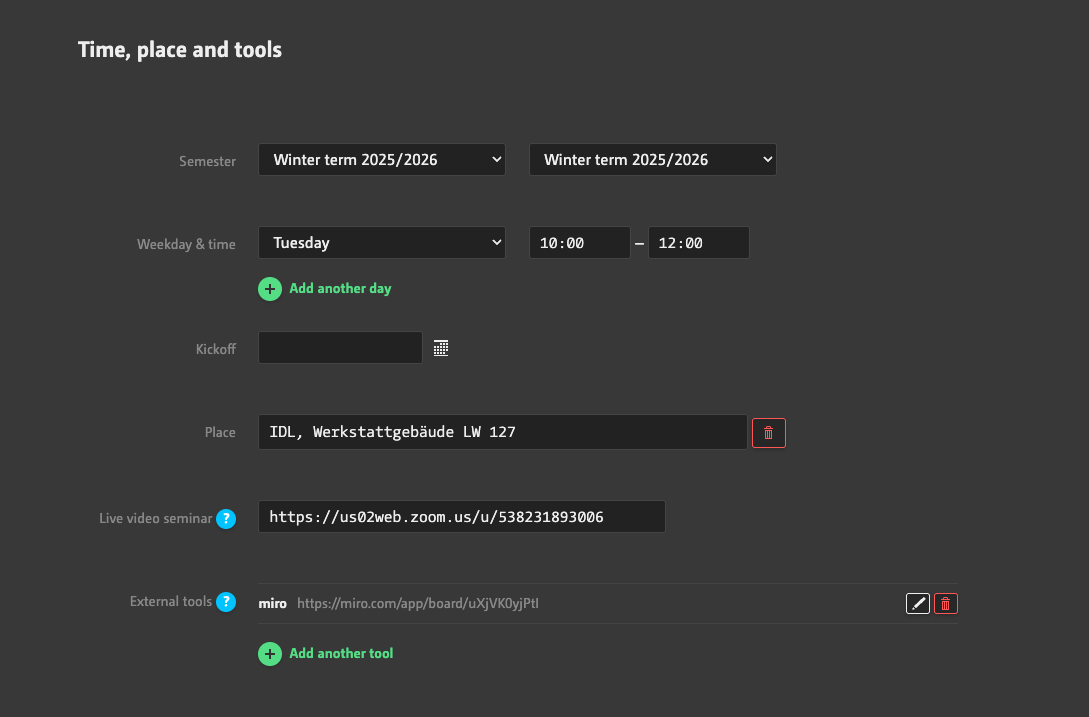
awaits information about the timeframe, optional weekday and time the course takes place, and where to meet.
Can I use my workspace over several semesters?
In principle, yes, but if the workspace is a course, it should start in the current semester in order to appear in the course catalogue or, where applicable, to be included in the course enrollment process.
Since the COVID-19 pandemic there is the possibility to prominently link a live conferencing room or any other tools that are important for the collaboration like e.g. a miro board or a google doc. Due to the prominent placement of the links next to the internal action links, their number is limited to a maximum of 5.
Administration
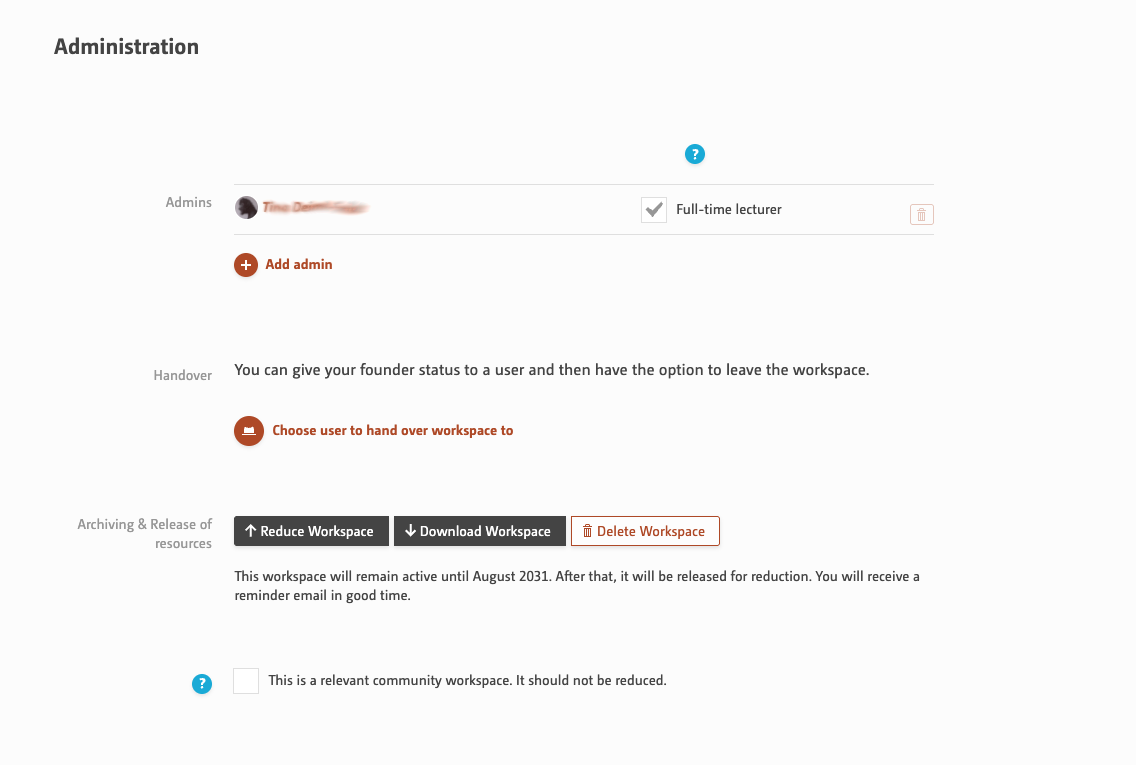
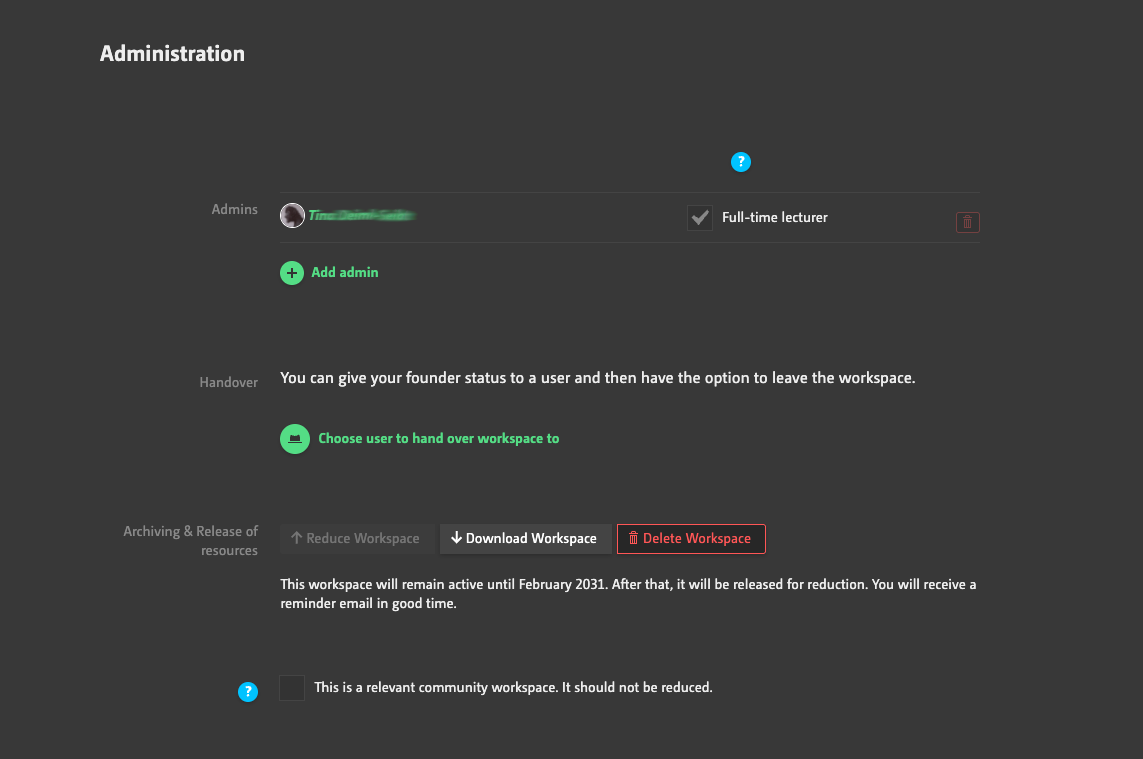
The administration area is for later use. Here you can add administrators and determine which of them should be listed as teachers in the course catalog.
Can I transfer my workspace to someone else?
You can transfer workspaces when you leave the university. To do this, select an existing user from the autocomplete list. The new owner of the workspace will be notified by email – but will not be asked if they agree to this. It is therefore best to discuss this in person beforehand.
What does ‘scheduled for reduction’ mean?
To prevent the Incom database from growing indefinitely, workspaces are reduced after a certain period. This means they are reduced to a minimal reference. Essentially, this consists only of the Info tab and the link to the associated projects. Or you can specify whether the workspace should remain permanently. However, this implies that the workspace is actually relevant to the community and accessible to them. Workspaces with restricted access are, of course, not relevant.
How can I keep the workspace as my own reference?
The best way to do this is to download it to your own hard drive.
Conditions of participation and visibility
Here you can specify how members may join - how many at max and maybe only from a certain date on.
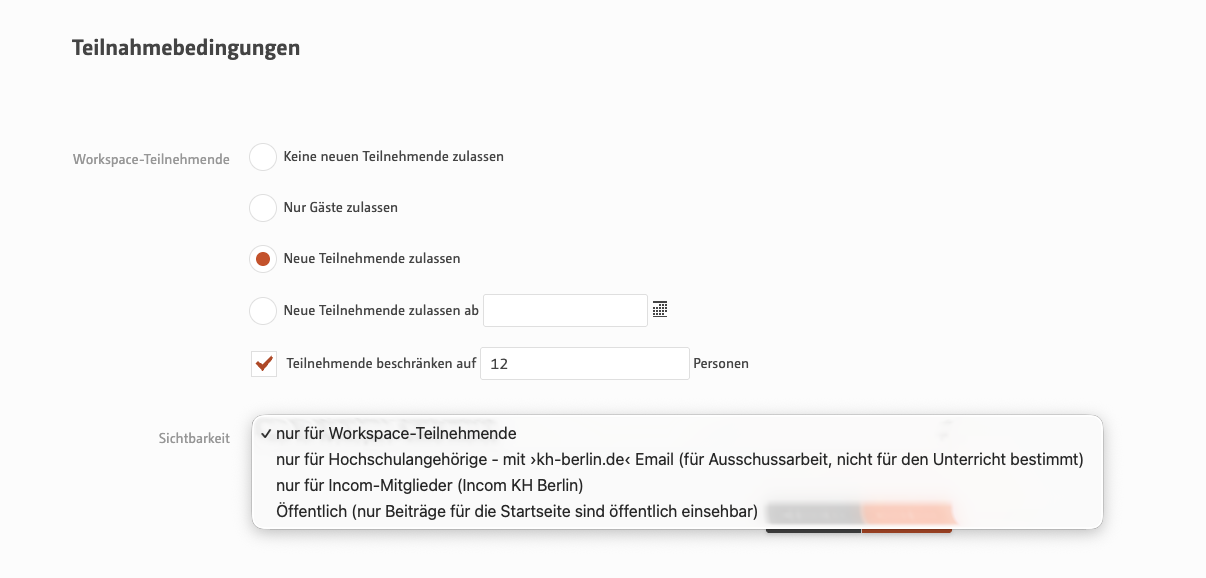
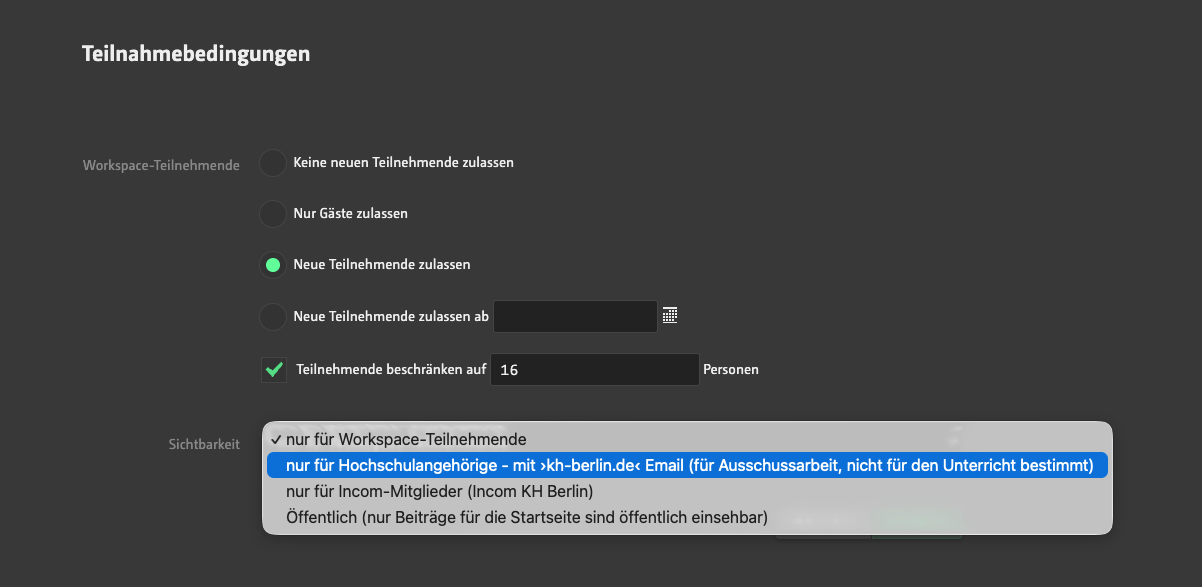
Visibility specifies who sees and may possibly join the workspace.
What does ‘for Institution members only’ mean?
This can, of course, only be verified via email, and means that only users with a university email address can view this workspace. This also excludes lecturers with a different email address.
What does ‘public’ mean for the workspace?
In principle, workspaces cannot be viewed without logging in. There are no exceptions to this. The visibility level is there so that posts from the workspace can be exported as an RSS feed, provided this feature has been enabled in this instance. It also allows posts to be sent to the front page, where they can then be viewed without logging in.