Create project
The ‘Add project’ or ‘Document project’ button appears in various places within the interface. For example, in the project archive, in the ‘Projects’ tab of your profile, or in a workspace you are part of.
If these buttons aren't showing, you're probably logged in as a guest or an alumnus/alumna.
If any project templates have been provided, clicking on ‘Add project’ will lead to a selection list of templates.
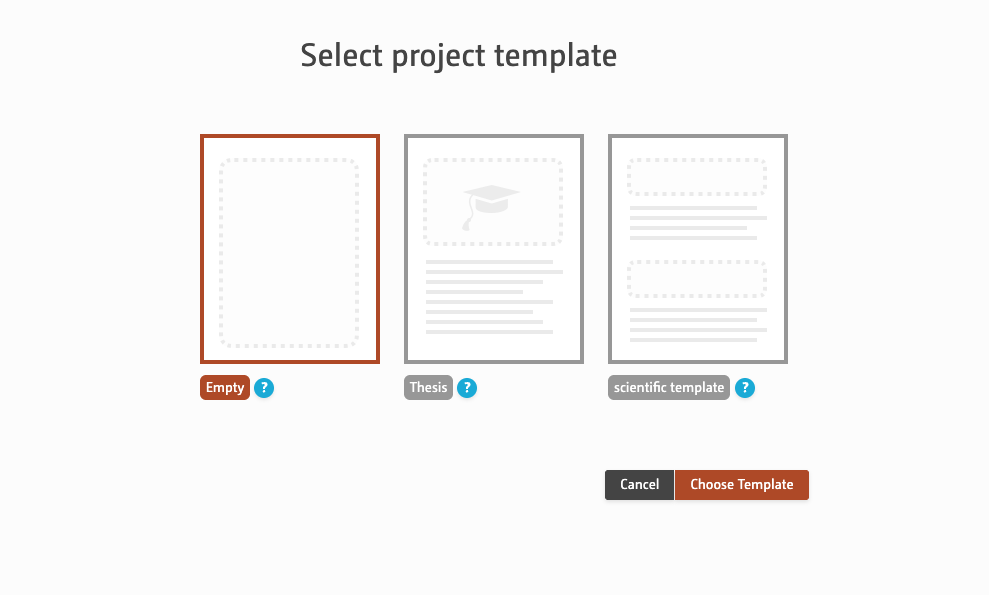
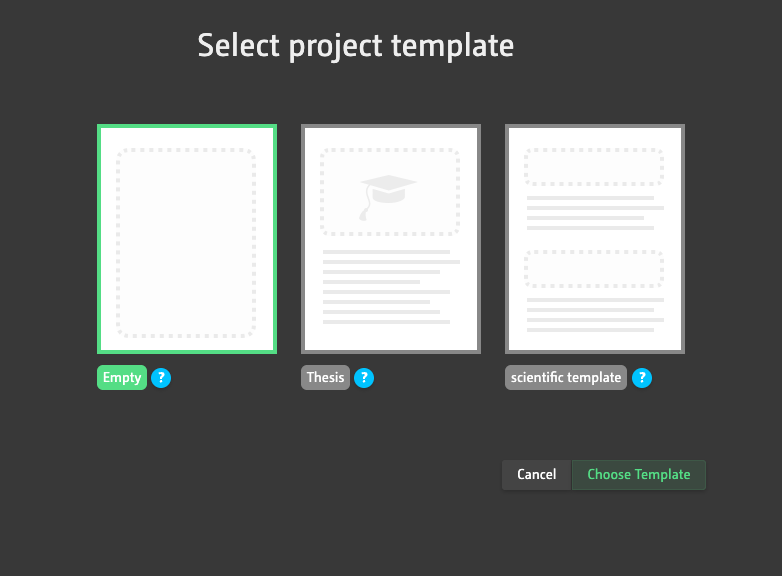
When you choose a template, sections are already pre-filled in the project – with tips on how best to complete them. The structure is already set out.
If, on the other hand, you choose a blank project, you’ll need to create the structure yourself: with headings, text, image galleries, PDFs or videos. The options for doing this appear when you hover your mouse over ‘+ Add’.
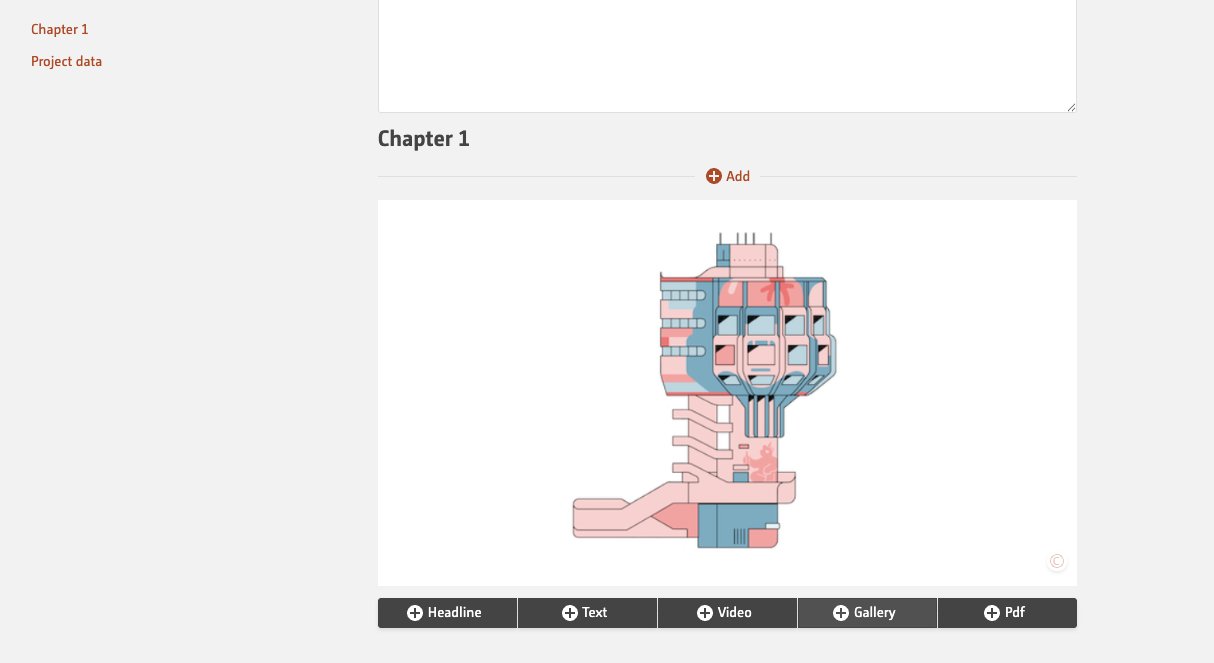
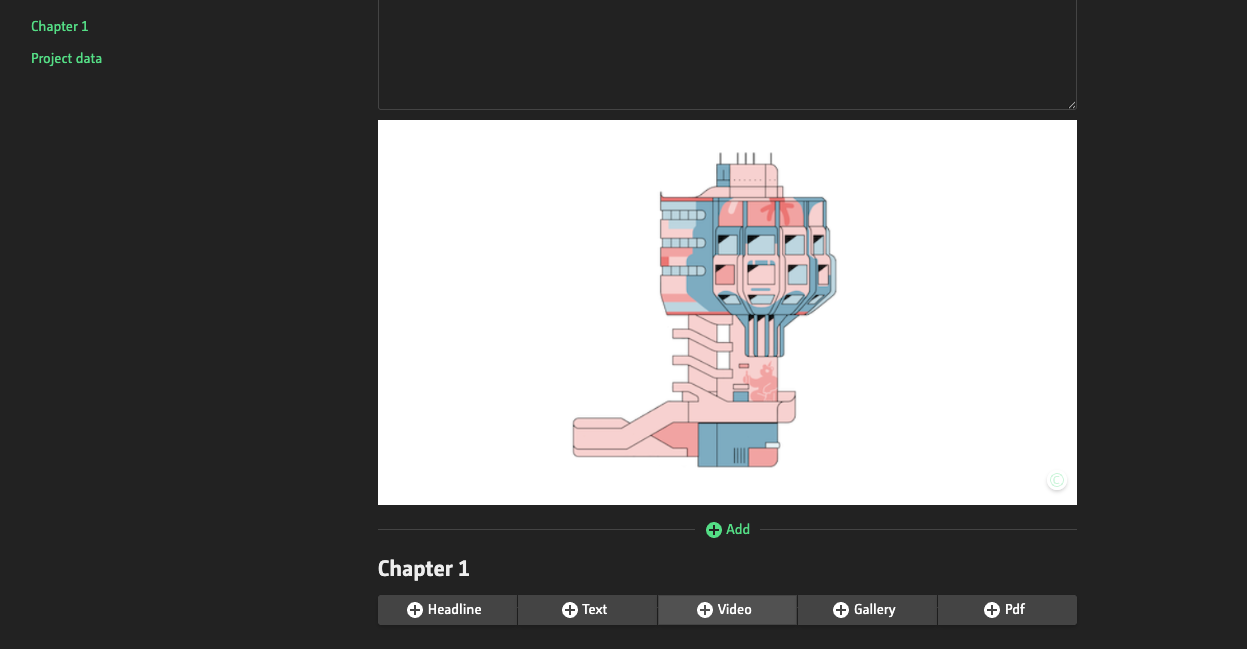
How do I structure my documentation?
The best way is to use headings. These serve as chapter navigation.
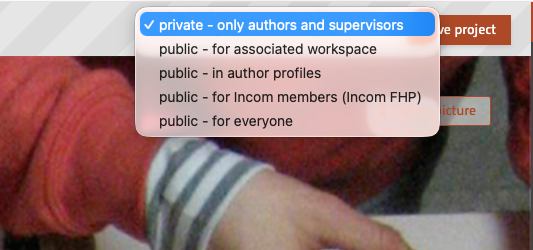
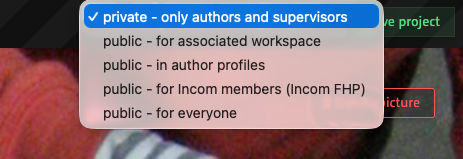
Why can’t I make my project visible to everyone?
Every project must have a header image and a title. This ensures you have full access to the visibility settings. The short description is also important; it appears in the overview when you hover over the project.
Headings are used for chapter navigation.
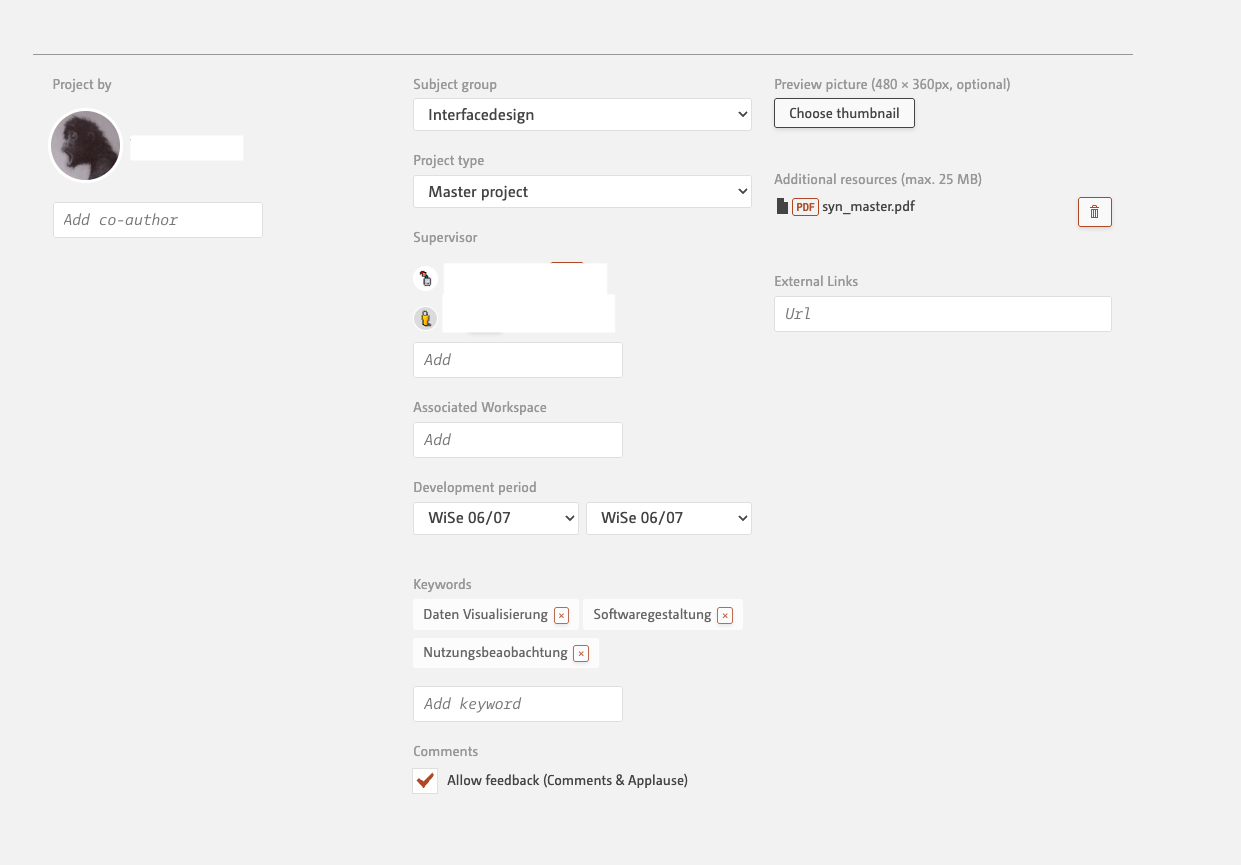
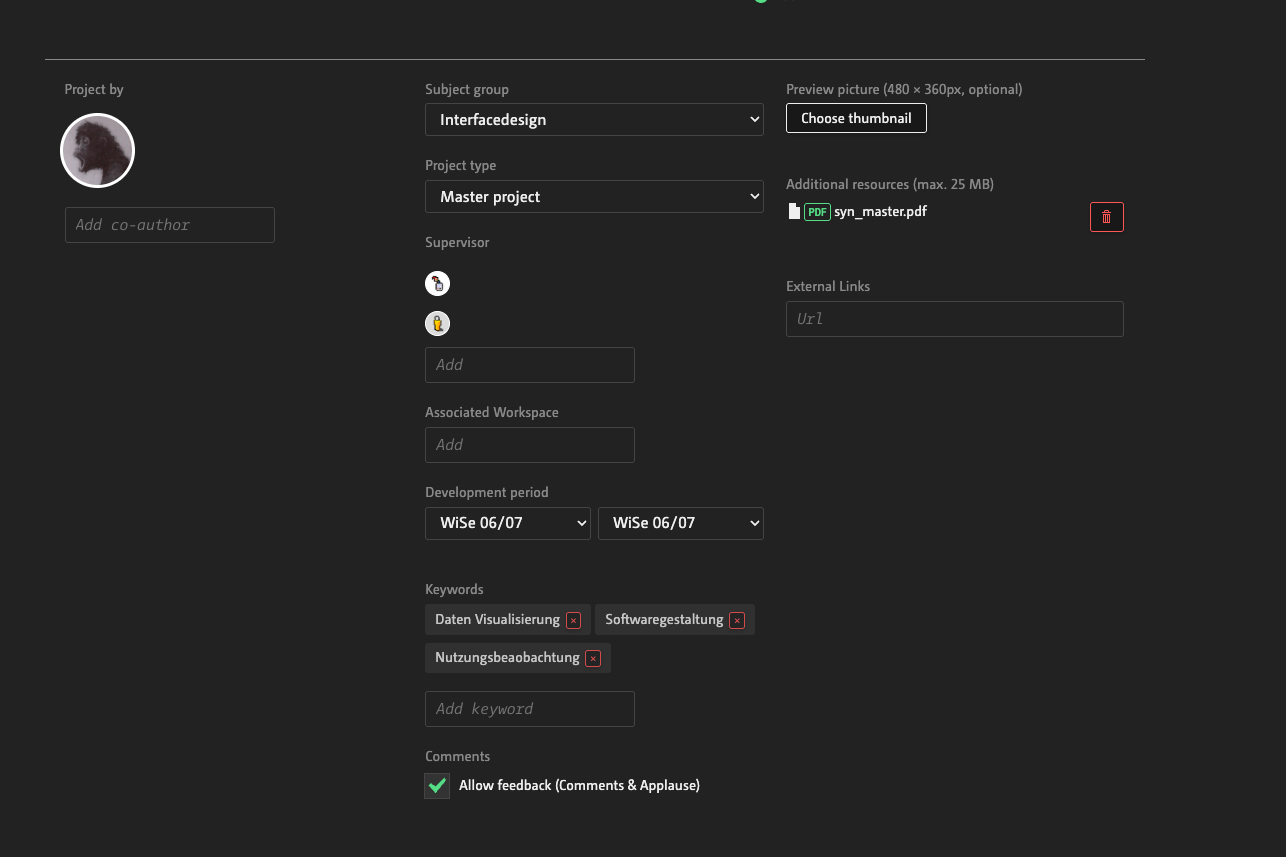
Once the structure of the image and text is in place, all that’s missing is the metadata – in other words, the project details. Here, you enter the authors and supervisors. For the subject group, your degree programme will be preselected.
You should also specify the type of project and whether it is linked to a workspace or a course. Please also include the creation period and, if applicable, relevant keywords.
You can also upload additional files or set your own thumbnail for the overview. However, this isn’t essential – otherwise, Incom will automatically generate a thumbnail from the header image.
How do I get my project featured on the front page?
To set the publication date for the front page, click the ‘Post to the Incom front page’ button.
This can only be done once. Here’s why: the homepage always displays the most recently published projects. So if you spend a long time working on your documentation and don’t make it visible until it’s ready, it may no longer appear among the latest projects.
So please don't click the button until everything is ready and you want to present your project to the community.


How do I get feedback?
To allow fellow students and supervisors to comment and provide feedback, the “Allow feedback” checkbox should be ticked.

